
Control Unit Reset
This guide may be helpful if your lights are not responding or you receive the "No WiFi Networks Found" app error message during the setup.
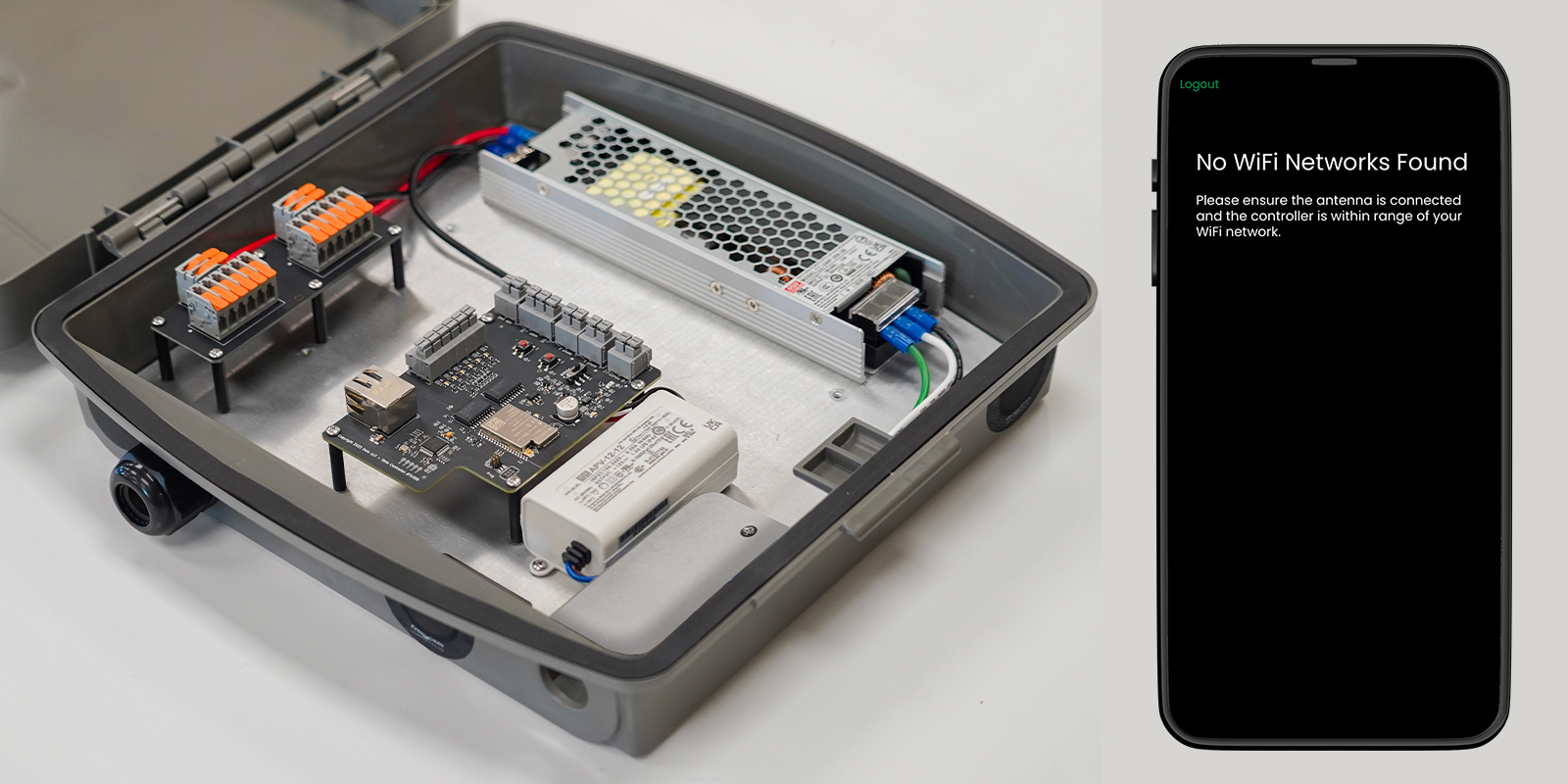
Solution: Check Control Box Lights
- Open your Control Box.
- Check that the Control Unit lights are illuminated correctly.
Note: Resetting your Control Box will not effect any of your saved patterns, schedules or settings, should you need to follow the reset instructions below.
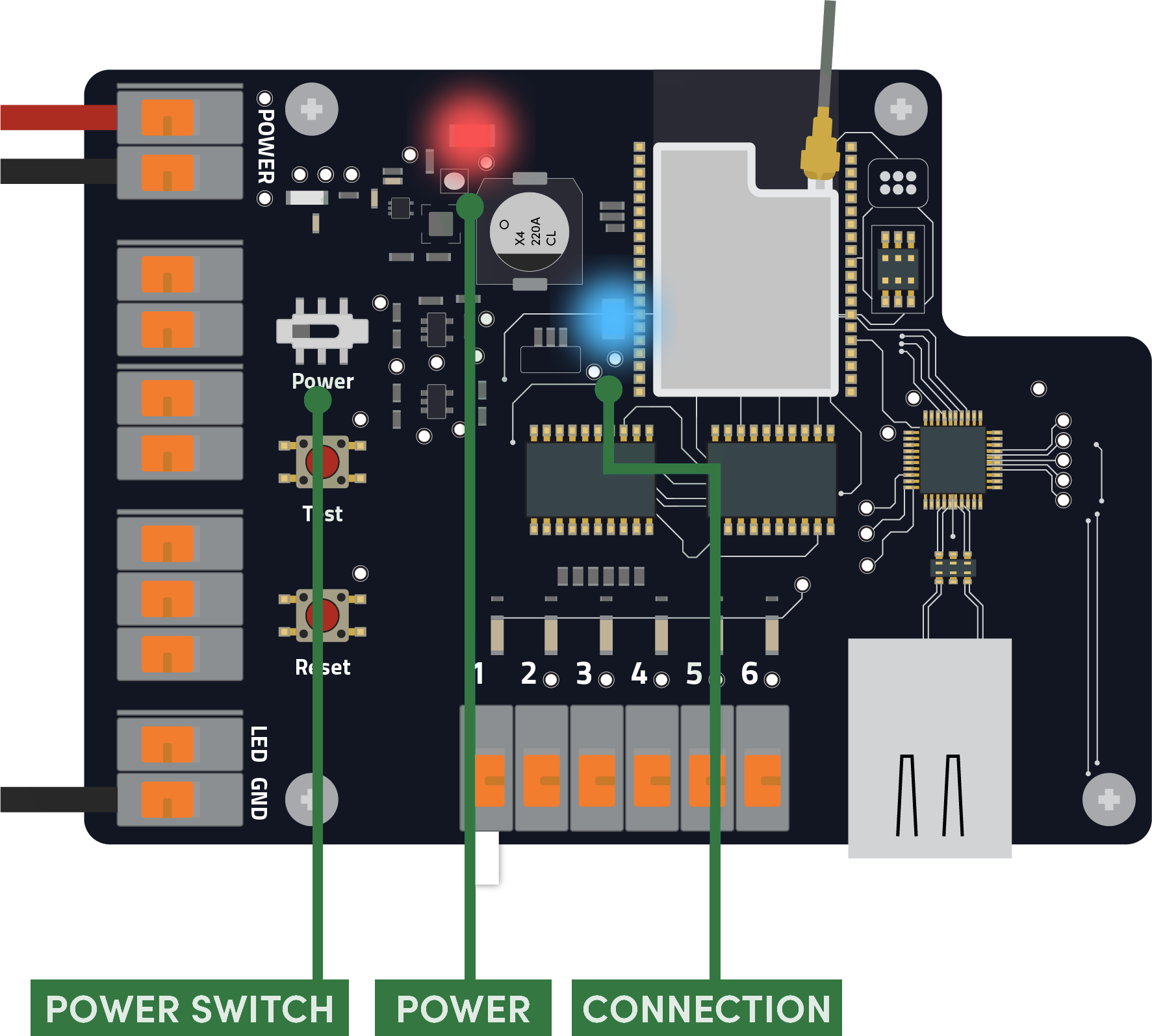
Red Light: The Controller is receiving power. If this light is not illuminated, check that:
-
- The breaker hasn’t been tripped.
- The box is plugged in.
- The Power Switch is flipped in the ON position (toward the orange connectors).
If the Red Light is off and the above steps don’t help, "re-boot" your box by unplugging and plugging it back in, then watch for the Blue Light to run through this series...
Blue Light Slow Flash: The Controller is starting up, updating or attempting to connect.
Blue Light Fast Flash: The Controller is ready to connect to the App. The Blue Light will stop flashing and glow solid once you connect to the Network.
Solution: Run Through Initial Setup
Connecting Controller To Home Network
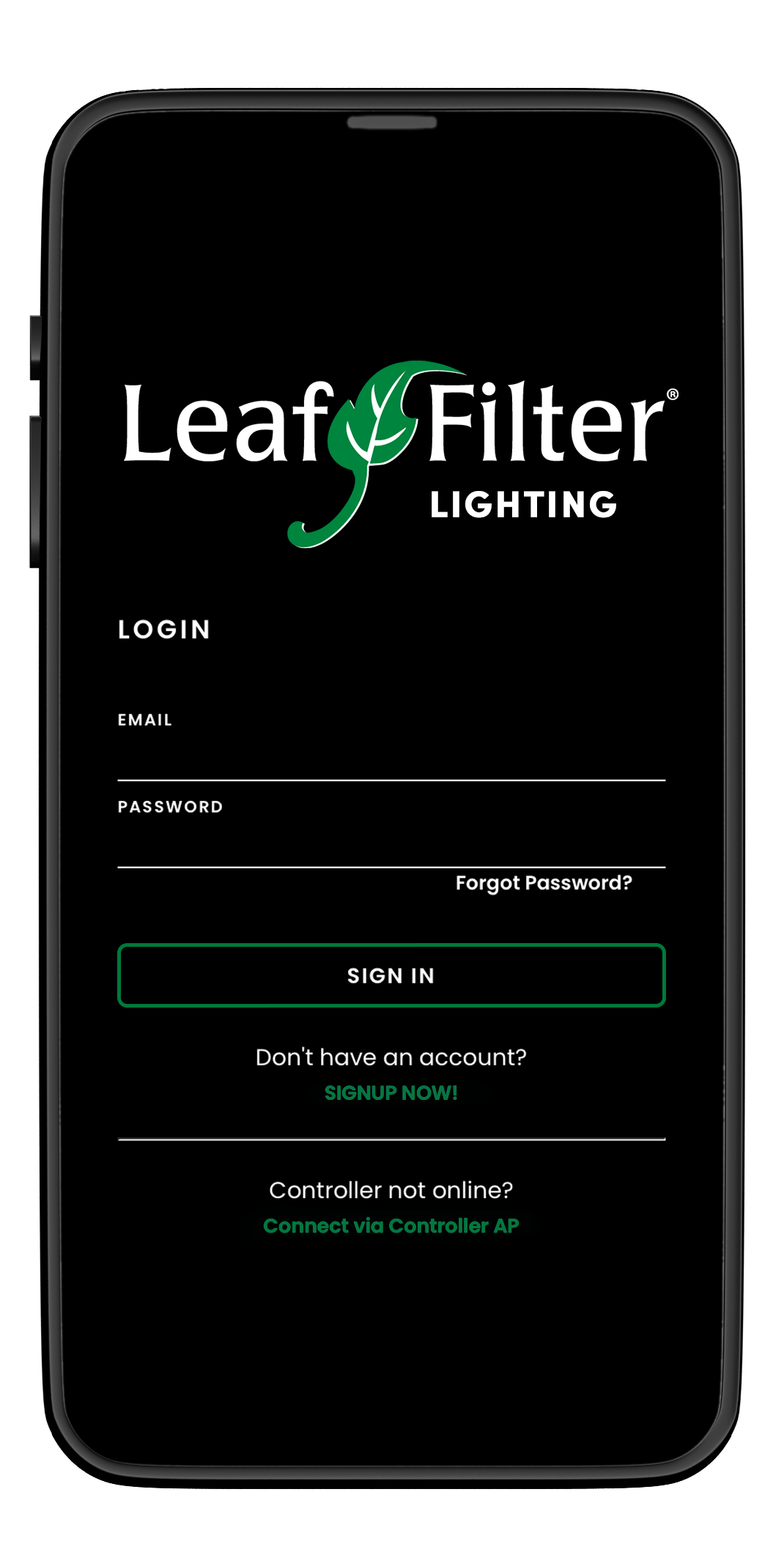
Step 1: Re-open and log in to the Lighting by LeafFilter App.
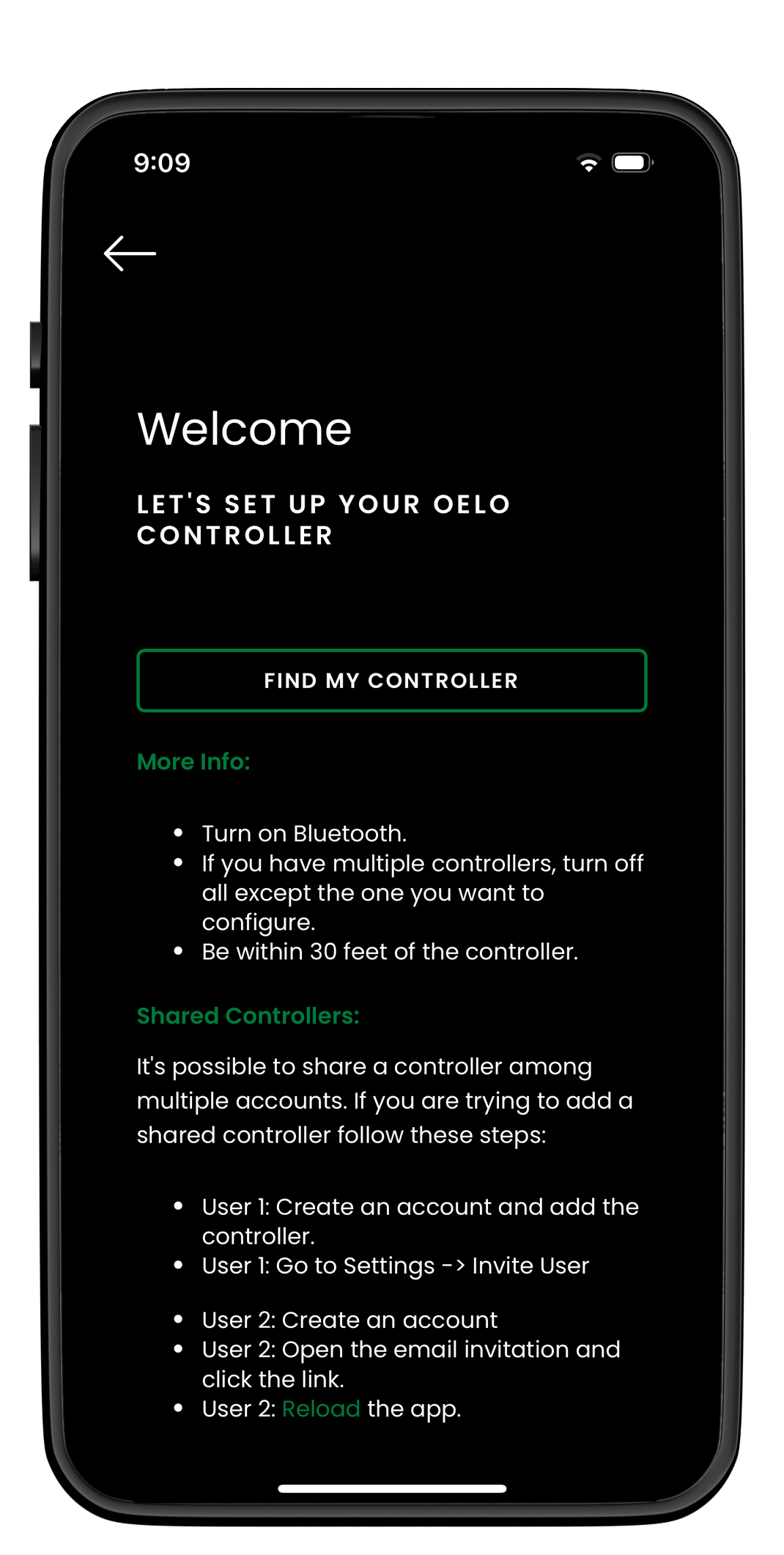
Step 2: Tap the Setting Gear icon (top right), Add Controller (in the flyout), then FIND MY CONTROLLER.
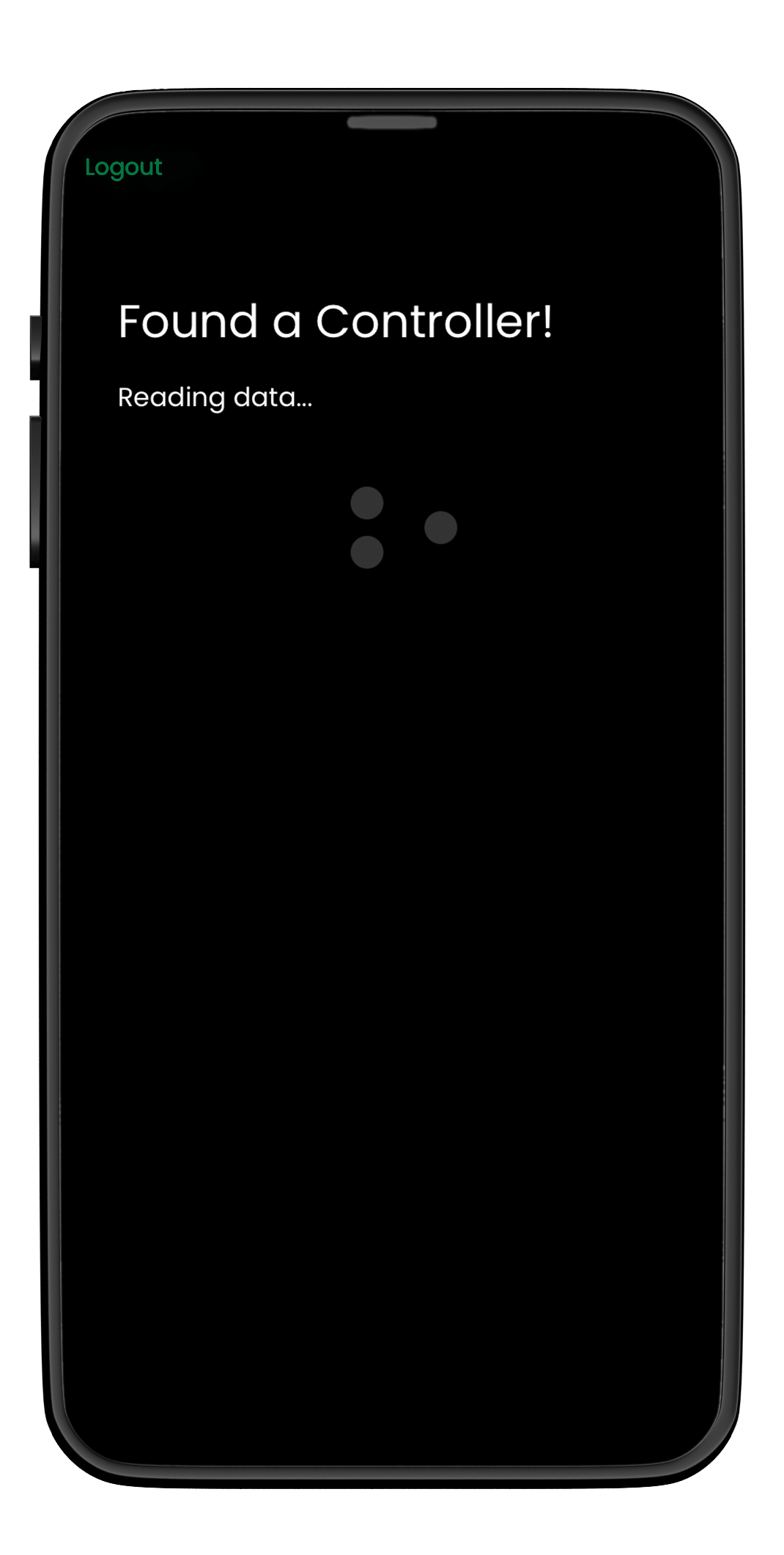
Step 3: Wait for the App to find the Controller. Stand close to the Controller for the fastest results.
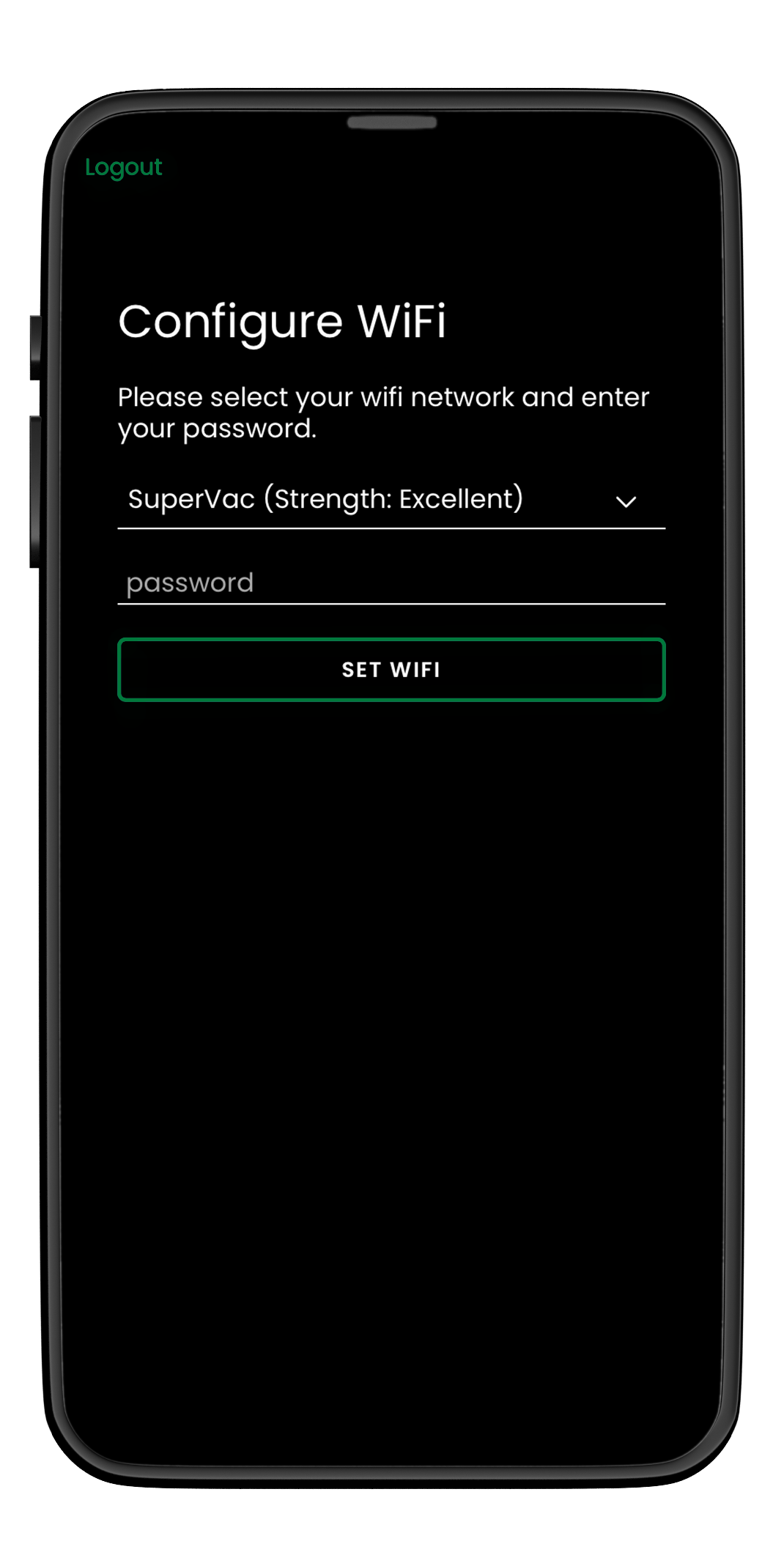
Step 4: Select your WiFi network from the dropdown menu and enter your network password.
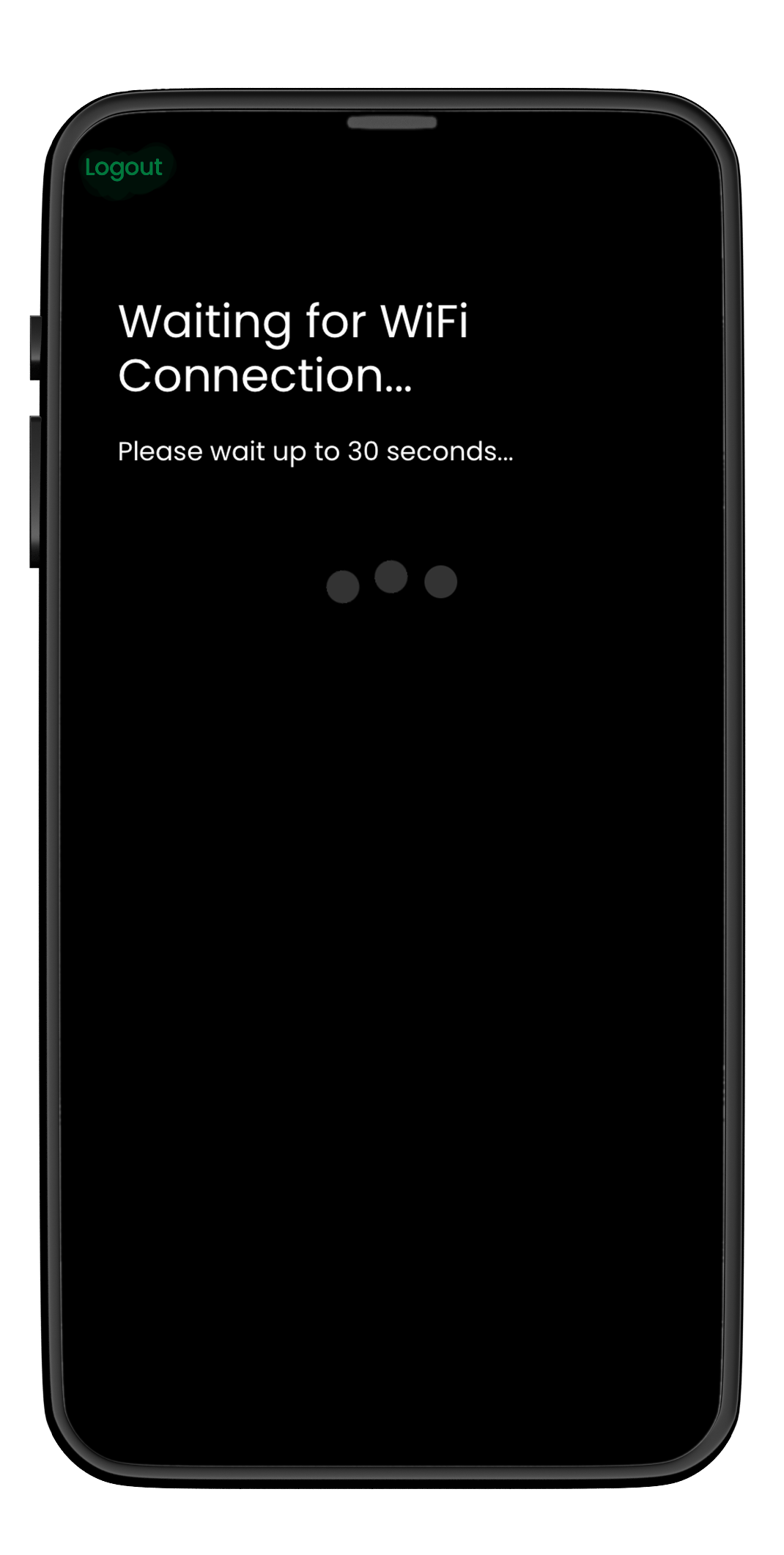
Step 5: Wait for WiFi connection.
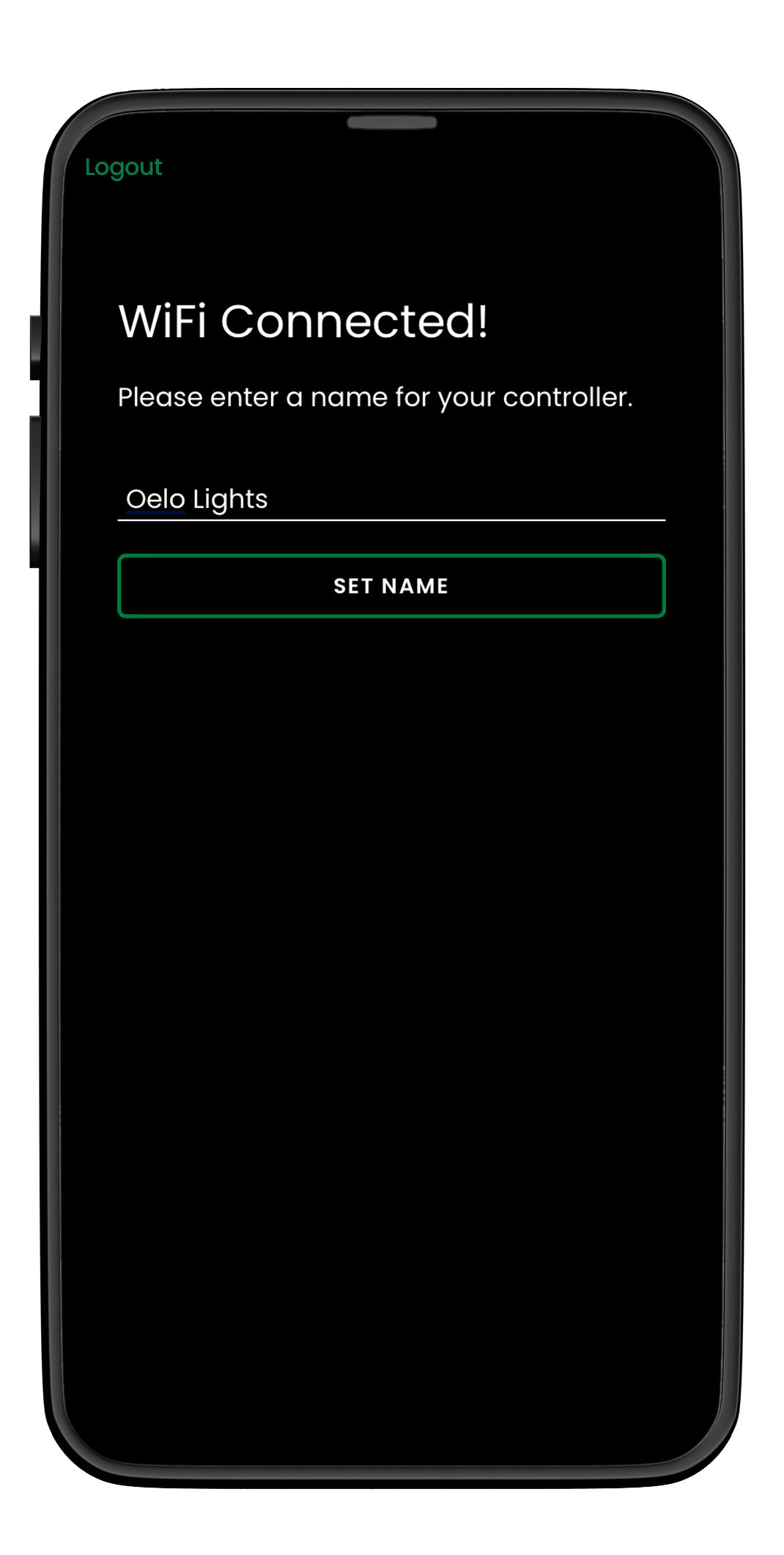
Step 6: Enter a name for your controller like “Home.”
If you still need help ...
If you have followed these instructions and your system is still not working, please fill out a service form below and a technician will reach out to you for further diagnose.